Verified usage guide
How to use HotClip on Mac
· 5 minute read · By Demetris Georgiou
Install HotClip, copy normally, then use one of three keyboard methods to open your clipboard history. The macOS Accessibility grant is optional for capture and search, but enables HotClip to paste automatically into the app you were using.
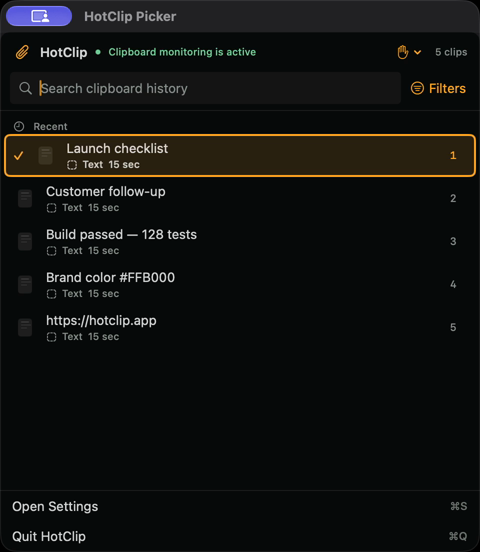
1. Download and install HotClip
Download the signed DMG from hotclip.app, open it and move HotClip to Applications. Open HotClip; its icon appears in the menu bar and clipboard monitoring starts locally.
HotClip is free, requires no account and supports macOS 15 or later.
2. Allow Accessibility for automatic paste
Open HotClip Settings → General and choose Allow Accessibility. In macOS System Settings, enable HotClip under Privacy & Security → Accessibility, then return to HotClip. The app checks the permission again automatically; Check Again is also available.
This is the one macOS system grant HotClip requests for automatic paste and snippet expansion. It is not required to monitor the clipboard, store local history or search clips. Without it, HotClip copies the selected item and tells you to press Command-V manually.
Accessibility grant vs Accessibility Mode
The Accessibility grant is the macOS permission for automatic paste. Accessibility Mode is a separate, optional interface preference inside HotClip that strengthens keyboard focus, selection indicators and VoiceOver behavior. Turning on the interface mode does not replace the macOS grant.
3. Copy and open clipboard history
Copy supported text, images, files or rich text in your usual applications. Use Command-Shift-V or double-tap Command when you want to type a search. Use Command hold for quick temporary access without leaving the picker open.
You can change the global shortcut, hold trigger and hold delay in HotClip Settings → Shortcuts.
4. Select, search and paste
- Type to search when the persistent picker is open.
- Use Up and Down Arrow to move the selection.
- Press Return to paste the selected clip.
- In the standard picker, press Shift-Return to paste supported text as plain text.
- When Accessibility Mode is off, use 1–9 for direct selection while the picker is visible and search is empty.
- Escape closes a double-tap picker. In the standard shortcut picker, it steps back through search, previews and menus before closing.
5. Search screenshots with on-device OCR
When image recognition is enabled, HotClip uses Apple Vision on your Mac to detect words in copied images. The recognized text becomes searchable without replacing the original image or sending it to a remote OCR service during normal local use.
Privacy controls worth reviewing
Use HotClip's privacy settings to pause monitoring, ignore the next copy, exclude applications, control retention and clear history. Concealed, transient and reviewed password-manager clipboard content receives additional protection before storage.
For exact storage, analytics and optional-feature behavior, read the HotClip privacy policy.
Common questions
What is the default shortcut?
Command-Shift-V. You can replace it with another modifier-plus-key shortcut in Settings.
Why does HotClip ask me to press Command-V?
Automatic paste was not available, so HotClip safely copied the selected clip instead. Enable the macOS Accessibility grant for automatic paste or press Command-V yourself.
Does holding Command paste automatically when I release it?
No. Arrow keys only move the highlight. Press Return to paste explicitly; releasing Command otherwise closes the transient picker.
Try HotClip on your Mac
Download HotClip 1.0.27 for macOS 15 or later. The installer and in-app updates are signed.
Download HotClip free