Mac clipboard guide
How to use clipboard history on Mac
· 6 minute read · By Demetris Georgiou
A clipboard manager keeps more than the last thing you copied. With HotClip, you can search recent text, images, files and rich text, preview a result, and paste it back without sending clipboard contents to a remote service during normal local use.
What Mac clipboard history solves
The standard copy-and-paste flow replaces the active clipboard item each time you copy something new. That is fine until you need the previous link, a paragraph from two copies ago, or text found inside a screenshot. Clipboard history keeps those recent items available so you do not have to reopen documents or repeat work.
HotClip is a dedicated clipboard manager for macOS 15 and later. It runs from the menu bar, opens from a configurable keyboard shortcut, and is designed around fast recovery of recent clips rather than a cloud account or long-term document library.
Set up HotClip clipboard history
-
Download HotClip
Download the signed DMG from hotclip.app, open it, and move HotClip to Applications. HotClip is free and does not require an account.
-
Choose how the picker opens
Press Command-Shift-V, hold Command for the transient picker, or double-tap Command for the persistent searchable picker. The shortcut, hold trigger and hold delay can be changed in HotClip Settings.
-
Copy as usual
Copy text, images, files or rich text in your normal apps. Supported items appear in HotClip history, subject to your retention, size and privacy settings.
-
Open, find and paste
Open HotClip, type to search, use the arrows to select a clip, then press Return to paste. You can preview, pin, delete or copy a result without pasting when needed.
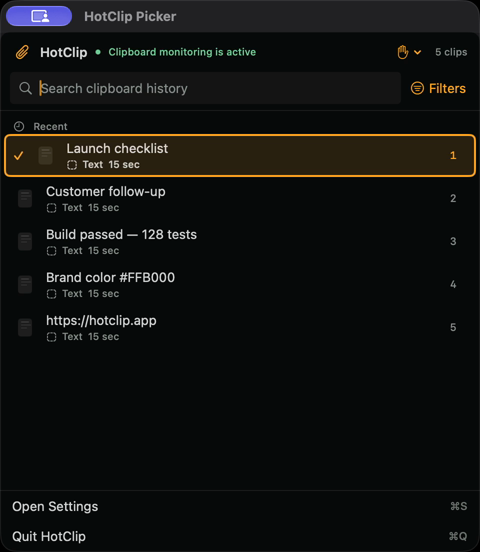
Search copied text, images and files
HotClip searches plain text, safely extracted rich text, URLs, file names, source-app names and other local metadata. Filters can narrow results by content type, source, age or pinned status. Optional Apple Vision OCR makes text found in copied images searchable on your Mac while preserving the original image.
For repeated content, pin important clips or turn text into a reusable snippet. For a sequence of values, add clips to a temporary paste queue and paste them one at a time from the keyboard.
Keep clipboard history private
HotClip stores history locally by default and does not upload clipboard contents for search, OCR, previews or text transformations. It rejects clipboard items marked concealed, transient or auto-generated before storage and excludes reviewed password-manager apps by default.
You can pause capture, ignore the next copy, exclude specific applications, set age and storage limits, or clear recent history. Portable export and any separately provisioned private sync are explicit choices rather than requirements. Read the HotClip privacy policy for the complete behavior.
System requirements and direct paste
HotClip supports macOS 15 and later. Accessibility permission is used for automatic paste and the transient hold workflow. Without that permission, HotClip can still open and copy the selected clip so you can paste it yourself with Command-V.
The app publishes a signed Sparkle update feed, versioned installers, SHA-256 checksums and workplace review information. These details help individual users and IT teams verify what they install.
Clipboard history questions
Can I search text inside a copied screenshot?
Yes. When on-device image recognition is enabled, HotClip uses Apple Vision to make detected text searchable locally without replacing the image.
Can I stop an app from entering clipboard history?
Yes. Add the application to HotClip's privacy exclusions. Password managers and concealed or transient pasteboard content receive additional protections.
Does HotClip work without an account?
Yes. The download and normal local clipboard workflow do not require account creation, sign-in or a subscription.
Try private clipboard history on your Mac
Download HotClip 1.0.27 for macOS 15 or later. The installer and in-app updates are signed, and the current checksum is published for verification.
See the focused Mac clipboard manager overview for features, privacy details and compatibility.
Download HotClip free